Chapter 10: Managing Multiple Accounts (MCC)
AdWords has a few tools to help you manage a large account or many accounts at once. These include the following:
- The Bulk Actions Editor that gives you the ability to change bids and other aspects of an ad group or campaign across 100's of items all at once.
- The AdWords valuetrack which is a URL tagging feature that gives you detailed data about each click on your ad.
- The AdWords editor which allows you to download your account, edit your campaigns, and then re-upload the changes to AdWords.
- The AdWords application programming interface (API) which helps developers build applications that interact directly with the AdWords server.
- The AdWords My Client Center (MCC) where several managed accounts linked to one account allow you to manage them all from one central location.
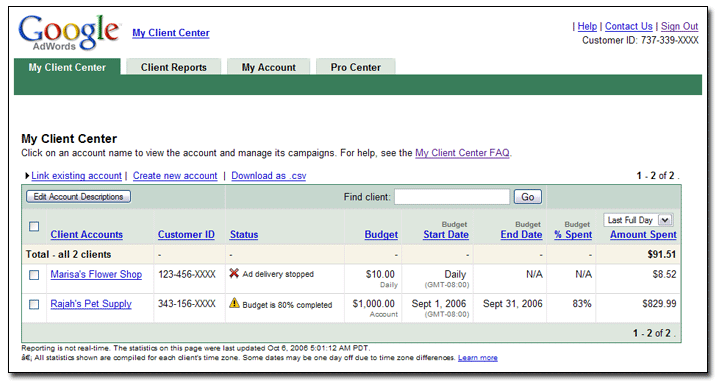 |
Preview of the MCC |
AdWords makes it possible for marketing agencies or search engine marketers to manage multiple AdWords accounts through a My Client Center (MCC) account.
Every individual AdWords account has limits that are set high, but for some businesses, it's not enough. So large advertisers that go over the limits for their account can also benefit from and sign up for a My Client Center (MCC) account.
My Client Center (MCC) accounts are basically umbrella accounts with several managed AdWords accounts linked under it. You can use a MCC account to login to access all managed accounts instead of having to login to each account manually. These are mainly used by marketing agencies.
All you need to do is sign up at MCC. You should choose an entirely new username and password from your individual AdWords account. Just set the general information and accept the rules of use.
Navigating MCC
Within a MCC account, you'll be able to navigate to your linked accounts by using a drop down menu where you can 'jump to client'. This drop down menu will show the accounts you've linked up to your MCC account.
The MCC dashboard allows you to view a wide range of client account statistics. It even provides summaries of statistics for all client accounts. Within your MCC account there's a performance page that shows statistics on the clicks, conversions, and conversion rates for each managed account. And there's a budget page that shows all the information about percent of budget spent and total spend for each account.
Since these are mainly used by ad agencies, AdWords has a way to manage the payments. You can use the Manager defined spend (MDS) feature to control the budgets for the individual accounts within a MCC account. You are billed for these accounts through one manager defined order (MDO) monthly invoice, making managing the money much easier.
It's a way to give control over managed account budgets to MCC account users. A managed account is eligible for MDS if it is on monthly invoicing or on credit card post pay.
MCC Levels
There's a lot of flexibility with MCC accounts. AdWords doesn't just allow you to have individual accounts under one MCC account. You can actually have as many as four levels of MCC accounts.
You can link from a top level MCC to sub level MCC's to individual accounts or MCC's.
As you can imagine, the different levels can get confusing. To help you navigate through the structure MCC's have breadcrumbs to show you which level you're on.
It's easy to unlink accounts in MCC. If the unlinked account was on a manager defined spend (MDS), all active and pending budgets will be disabled and the account's ads will stop serving within 30 minutes.
Once individual accounts are linked to an MCC account, you can manage the account the same way you manage individual AdWords accounts as long as you're given the right access level.
Here's a summary of the different levels of MCC access:
- Email only access; can receive reports and notifications, but cannot login to access the account.
- Read only access; can view and run reports, receive notification emails, browse campaigns, opportunities, and contextual targeting, along with unlinking MCC accounts.
- Standard access; can receive notifications, can view, edit and manage any part of an account and its campaigns, can't give account access or change another person's access level.
- Administrative access; can receive notification emails, view, edit, manage any part of an account and its campaigns, can give account access and change another person's access level, can cancel invitations from other users.
- MCC access; can receive notification emails, can view, edit, and manage any part of an account and its campaigns, can give read only or standard account access and change another person's access level to read only or standard.
Changing Client Managers
You can move a managed account to another MCC within your top level MCC. However, if you move an account on a MDS from one MCC to another, both MCCs must have access to the manager defined order (MDO) funding account for the ads to keep running. The MDO is applied to your top level MCC.


 Posts
Posts


0 comments:
Post a Comment